Should You Use ClickUp on Mobile or Desktop?

Are you stuck choosing between using project management tools on your phone or computer?
With more people working from home, it's key to manage tasks on the go.
In powerful tools like ClickUp works on both phones and computers, making it a favorite for many.
But, which one is better?
In this article, we'll look at the differences between using ClickUp on mobile and desktop devices.

We'll talk about the special features of each and help you pick the best one for your work.
Key Takeaways
- Understand the key differences between mobile and desktop versions of ClickUp.
- Learn how to maximize productivity on both devices.
- Discover which device is best suited for specific tasks and workflows.
- Get tips on how to seamlessly switch between mobile and desktop devices.
- Find out how to optimize your workflow using ClickUp's features.
Advantages of Using ClickUp on Mobile
The ClickUp app helps you stay productive anywhere.
If you're new to ClickUp, consider reading our introduction to ClickUp.
This article covers the basics of the tool.
It helps you understand how to get started with project management.
It has great mobile features.
You can manage tasks and projects easily, whether you're working from home or on the move.
Accessibility on the Go
Using ClickUp on mobile lets you access tasks and projects from anywhere.
This means you can stay on top of your work even when you're not at your desk.
Whether you're commuting, traveling, or working from a coffee shop, ClickUp's mobile app keeps you connected to your work.

Real-Time Notifications
ClickUp's mobile app also gives you real-time notifications.
You get instant alerts for task assignments, comments, and updates. This keeps you informed and helps teams work together smoothly.
Quick Updates and Time Tracking
The ClickUp app lets you make quick updates and track time.
You can log your time, update task statuses, and add comments from your mobile.
This is great for tracking work hours and keeping tasks current.
Some key benefits of using ClickUp on mobile include:
- Access to tasks and projects on the go
- Real-time notifications for staying informed
- Quick updates and time tracking for efficient work management
By using these features, you can boost your productivity and stay on top of your work, wherever you are.
For deeper insights into project management with ClickUp, explore our guide on ClickUp project management.
It explains how to organize tasks and projects effectively.
This can enhance your workflow on both devices.
Advantages of Using ClickUp on Desktop
ClickUp's mobile app is good for quick updates.
But, the desktop version gives a better experience. It has more features to help you work better.
Enhanced Productivity Tools
The ClickUp desktop app has advanced productivity tools.
Freelancers can particularly benefit from ClickUp features; check our article on ClickUp for freelancers.
It discusses tailored advice for remote work.
You can manage clients and deadlines seamlessly.
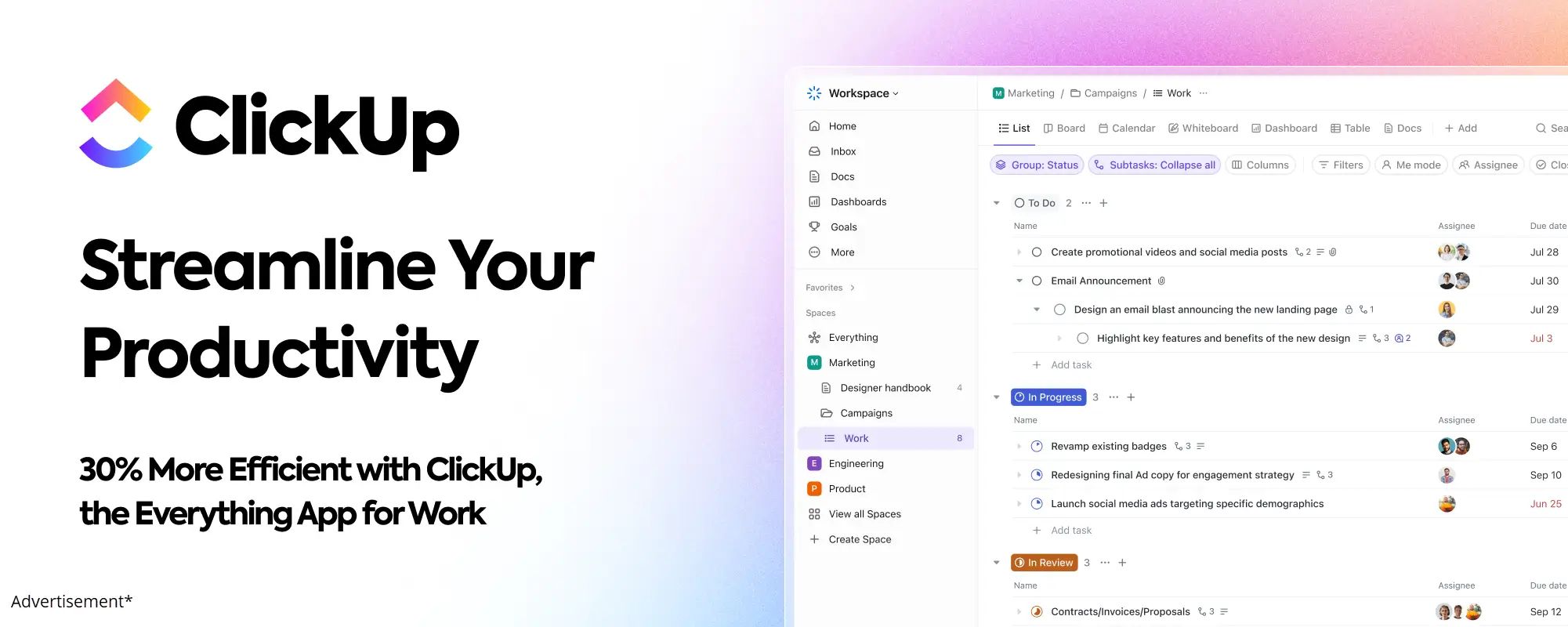
These tools help you manage tasks better. You can see your projects clearly with customizable dashboards and reports.
Multi-Window Functionality
Working on desktop, you can use multiple windows at once. This lets you look at different tasks or projects together. It makes your work flow smoother.
Larger Screen Viewing
A bigger screen lets you see more tasks and projects at once. It's less messy. This helps you handle complex work and keep track of tasks easily.
Using ClickUp on desktop boosts your productivity. It makes managing your work better.
User Experience: Mobile vs Desktop
The ClickUp app works well on both mobile and desktop.
It's great for when you're on the move or at your desk. Being flexible and easy to use helps you work better.
Interface Differences
The mobile and desktop versions of ClickUp look different.
When deciding, it's useful to compare ClickUp with alternatives; read our piece on ClickUp vs competitors.
This comparison highlights strengths and weaknesses.
It aids in making an informed choice for your needs.
The mobile app is easy to use on small screens. The desktop version has more tools and features.
Key differences in the interface include:
- Larger buttons and simple menus on mobile for easy use on-the-go.
- A detailed interface on desktop for complex tasks.
- Custom options for different devices and work styles.
Navigation Efficiency
Navigation is different on mobile and desktop versions of ClickUp.
Desktops are better for navigating because of their size. Mobiles have a simple system but need more taps.
The trade-off between the two is clear: desktops offer a wide view and easy access to features. Mobiles focus on quick task management.
In conclusion, ClickUp works differently on mobile and desktop. Each is best for different situations. Knowing this helps you work better, whether at your desk or on the move.
Performance Considerations
It's important to know how ClickUp works on phones and computers. This helps you work better. Many things affect which one you should use.
Internet Connectivity Impact
Internet connection is key for ClickUp on phones. You need a strong internet to use it well. Poor internet can cause problems and slow you down.

The computer version of ClickUp handles internet issues better. It works more smoothly. But, you should always have good internet to keep your work in sync.
Speed and Responsiveness
ClickUp's speed and how quickly it responds differ between phone and computer. The computer app is quicker and more responsive. This is because computers are usually more powerful and can handle many tasks at once.
- Desktop: Faster and better multitasking.
- Mobile: Good for when you're on the move, but might be a bit slower.
If you need to focus a lot or manage complex projects, use the computer version. It performs better.
Ideal Use Cases for ClickUp Mobile
ClickUp Mobile is great for working from anywhere. It has lots of features and is easy to use. It's perfect for managing your work on the go.
Remote Work Scenarios
ClickUp Mobile is perfect for remote work. You can see your tasks, projects, and team messages from anywhere. Work from home, a coffee shop, or a co-working space and stay productive.
- Stay Connected: Get updates on tasks, comments, and mentions in real-time.
- Manage Tasks: Make, change, and assign tasks from your phone.
- Track Time: Log time on tasks to keep project timelines current.
Daily Task Updates
ClickUp Mobile makes daily task updates easy. You can update task statuses, add comments, and share files with your team.
For example, you can:
- Mark tasks as done
- Change task descriptions or add new info
- Share files or documents with your team
Using ClickUp Mobile for daily updates keeps your work organized. Your team stays informed, no matter where you are.
To maximize your use, learn how to optimize ClickUp performance.
This guide provides tips for better productivity.
Apply these strategies on mobile or desktop alike.
Ideal Use Cases for ClickUp Desktop
The ClickUp desktop app is made for project managers. It has tools for better productivity and a bigger screen view. This helps you handle big projects well and see how you're doing over time.
Project Planning
Planning projects is key, and ClickUp desktop app is great at it. Its comprehensive interface lets you:
- Create detailed project plans easily
- Assign tasks and set deadlines
- Track progress in real-time
This control and visibility are vital for project success. That's why the desktop app is a must-have for project managers.
Long-Term Goal Tracking
Tracking long-term goals needs special tools, and ClickUp desktop app has them. It gives you a broader view of your projects. You can:
- Watch progress over time
- Change strategies as needed
- Keep your eyes on long-term goals
Using ClickUp desktop app for long-term goals helps you stay on track. You can make changes quickly.
Integrating Both Versions of ClickUp
ClickUp is great because it works on both phones and computers. This makes it easy to use wherever you are. You can pick the device that works best for you.
ClickUp keeps your work in sync, no matter where you are. You can switch between devices easily. This way, you never lose your place.
Synchronization Between Devices
ClickUp makes sure your tasks and notes are always up to date. This is super helpful for teams working from home or people who use different devices. It keeps everything in sync.
- Access your tasks and projects from any device
- Automatic updates ensure you're always on the latest version
- Seamless switching between mobile and desktop without losing your place
Real-time synchronization is key to ClickUp's power. It's a must-have for anyone who wants to work better on different devices.
Switching Seamlessly
Switching between ClickUp on phones and computers is easy. You can start a task on one and finish it on another. This keeps your work flowing smoothly.
This flexibility is great for people with different work places or times. Whether you're checking emails on your phone or working on a report on your computer, ClickUp helps.
Using both versions of ClickUp boosts your productivity and task management. It shows ClickUp's dedication to helping you manage your projects better.
Conclusion: Making the Best Choice for You
Choosing between ClickUp on mobile and desktop depends on what you like and need. Think about what works best for you. This will help you decide.
Assessing Your Needs
Think about how you like to work. Do you like to change tasks on the move?
Or do you prefer a big screen and strong tools on a desktop?
Your choice will depend on this.
Maximizing Productivity
Choosing ClickUp Mobile, Desktop, or both helps you work better.
ClickUp lets you switch easily between devices. This keeps you productive no matter where you are.
Integrations can streamline your process; discover more in our article on ClickUp automations integrations.
It shows how to connect with other tools.
This enhances synchronization across devices.
Remember, you can use both ClickUp Mobile and Desktop to work even better.
Check out our ClickUp review for tips on using it well.

Address
c/o Postflex #586
Emsdettener Straße 10
48268 Greven
Germany

If you click on them and make a purchase, I may receive a small commission.
The price remains exactly the same for you. Thank you for your support!