How Can You Use ClickUp Docs for Knowledge Management?

Are you tired of drowning in a sea of information?
A knowledge management system can be your lifeline! It helps you manage and share information and knowledge assets in your team.
ClickUp Docs is a great tool for this.
It makes it easy to find and use information. This helps teams work better together and make smart choices.

To fully leverage ClickUp for your team. Understanding the basics of ClickUp is a great starting point.
This knowledge will help you integrate the tool seamlessly into your workflow.
Key Takeaways
- Efficiently organize and access information with ClickUp Docs.
- Improve team collaboration and decision-making.
- Centralize knowledge assets in one place.
- Enhance knowledge sharing and reduce information silos.
- Boost productivity with a well-structured knowledge base.
Introduction to ClickUp Docs and Knowledge Base
Imagine having all your team's knowledge in one spot. It's easy to get to and change.
That's what ClickUp Docs gives you. It's a tool for teams to work together on documents.
What is ClickUp Docs?
ClickUp Docs is a central place for knowledge in the ClickUp world.
It lets users make and manage documents.
You can use rich text formatting, attachments, and version history. It also has real-time editing, commenting, and task integration.
With ClickUp Docs, you can forget about lost information.
Say hello to a system that keeps everything in order.
- Rich text formatting for clear and concise writing
- Attachments for adding relevant files
- Version history to track changes over time
- Real-time editing for collaborative work
- Commenting for feedback and discussion
- Task integration to link documents to specific tasks and projects
Importance of Knowledge Management
Good knowledge management is key for any team's success.
It makes sure info is easy to find. This saves time and prevents losing knowledge when people leave.
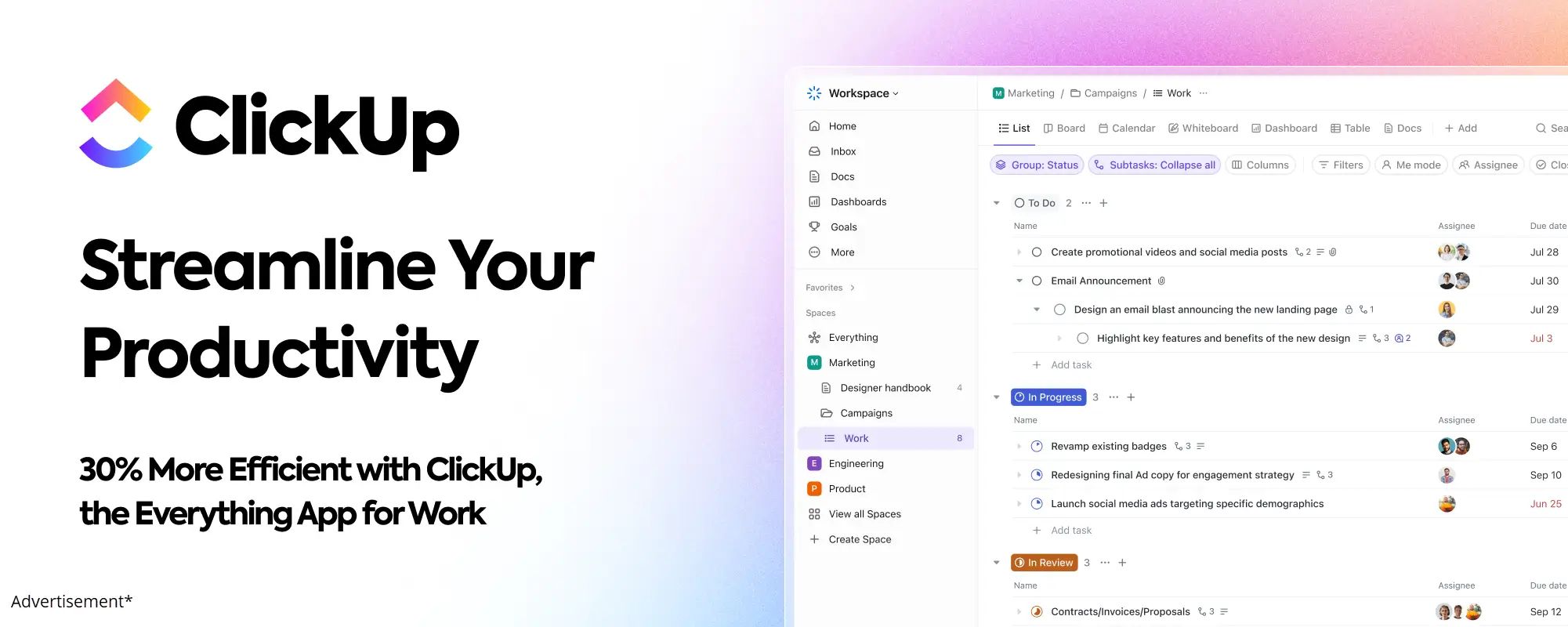
ClickUp Docs is a big help here. It's a central spot for keeping and managing knowledge.
- Improved collaboration among team members
- Enhanced productivity through reduced search times
- Better decision-making with access to relevant information
- Reduced knowledge loss due to employee turnover
Teams using ClickUp Docs see these benefits. It makes work more efficient and effective.
Benefits of Using ClickUp Docs
ClickUp Docs offers many benefits. It helps teams work better together and find information fast. It keeps all your knowledge in one spot.
Enhanced Collaboration
ClickUp Docs makes teamwork better. Team members can edit and talk about documents live. This makes working together easy and fast.
- Real-time editing lets many users work on a document at once.
- Comments and talks can happen right in the document. This cuts down on using other tools.
- Tasks can be assigned right from the document. This makes managing work easier.
Easy Accessibility
ClickUp Docs is easy to get to. Your team's knowledge is available anywhere, anytime, with the internet.
This is great for teams in different places or working from home. Everyone stays in sync.
Centralized Information
ClickUp Docs is a central spot for your team's info. It keeps all documents in one place. This stops information from getting lost and makes sure everyone has the latest.
"Centralizing your team's knowledge is key to boosting productivity and teamwork."
This way of organizing info makes teamwork better. It helps your team work together smoothly.
Setting Up Your ClickUp Docs
Let's start with setting up ClickUp Docs. It's easy to begin. You'll create your first document and organize it with folders and tags.
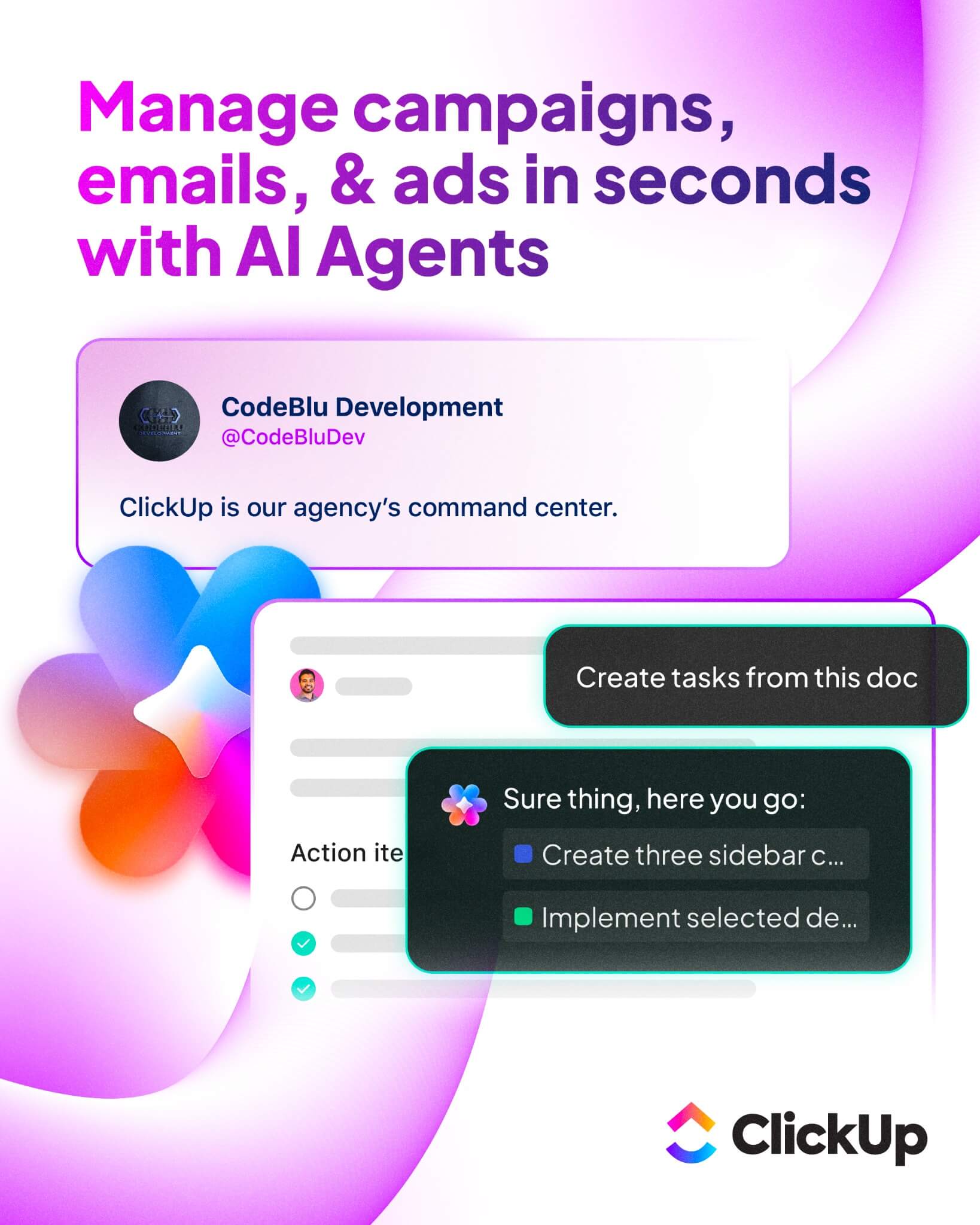
This guide will help you use ClickUp Docs for managing your knowledge.
Creating Your First Document
To begin with ClickUp Docs, you must create a document. Here's how:
- Log in to your ClickUp account and go to the Docs section.
- Click the "New Doc" button to make a new document.
- Choose a title for your document that shows what it's about.
- Start writing or copying your content into the document.
- Use the formatting tools to make your document easy to read.
Tip: Use clear headings in your document. This makes it easier to find what you need. You can also use formatting options like bold and italics to highlight important parts.
If you're new to setting up projects in ClickUp. Knowing how to set up ClickUp properly ensures a smooth experience.
This preparation helps avoid common pitfalls during initial configuration.
Organizing with Folders and Tags
As you make more documents, organizing them is key. ClickUp Docs lets you use folders and tags for this.
- Make folders for big categories your documents fit into.
- Use tags to categorize documents in those folders, so you can find them easily.
- When you make a new document, put it in a folder and add tags.
By doing these steps, you'll have a ClickUp Docs setup that's easy to use. This helps you manage your knowledge better. Remember, a good system is important for efficient knowledge management.
For more help, check out ClickUp's official tutorials. They offer lots of tips on using ClickUp Docs and other features for your team.
Best Practices for Document Creation
To get the most out of ClickUp Docs, follow best practices for document creation.
Make documents informative, easy to navigate, and understand. This way, you'll create a strong knowledge base for your team.
Writing Clear and Concise Content
Clarity is key when creating documents. You want your content to be straightforward and free of jargon. Here are some tips:
- Use simple language that's easy to understand.
- Break down complex information into smaller, manageable sections.
- Avoid using overly technical terms unless necessary for your content.
By following these guidelines, you'll create content that's concise and engaging. The goal is to communicate information effectively, not to confuse or overwhelm your readers.
Utilizing Templates for Consistency
Consistency is key in document creation. Using templates helps you achieve this by providing a standardized structure.
ClickUp Docs offers a range of templates you can customize to fit your needs.
Here are some benefits of using templates:
- They save time by providing a pre-designed format.
- They ensure consistency across your documents, making it easier for readers to navigate.
- They can be customized to fit your brand's voice and style.
For more information on using templates in ClickUp Docs, check out the ClickUp support articles or the ClickUp FAQ section for additional guidance.
Integrating ClickUp Docs into Your Workflow
ClickUp Docs is more than a tool for writing. It helps make your work flow better and your team work together smoothly.
Using ClickUp Docs every day can make your team work better together, avoid mistakes, and get more done.
Linking Docs to Tasks and Projects
ClickUp Docs lets you connect your documents to tasks and projects. This seamless integration makes it easy for team members to find what they need.
To link a doc, just use the 'Link' feature and pick the task or project from your ClickUp workspace.
This is great for keeping everyone in sync. For example, you can link a project plan to the project. This way, everyone working on it can see the plan easily.
Using Doc Comments for Feedback
Using the 'Comments' feature in ClickUp Docs is another smart way to work. It lets team members give feedback right in the doc.
You can tag team members in comments to make sure they see what you mean.
Comments for feedback make reviewing easier and keep all talk about the document in one spot.

This cuts down on email threads and separate feedback papers. It makes it simpler to see changes and decisions.
By using these features, you can maximize the power of ClickUp Docs in your work. This leads to better project management and teamwork.
If your team relies on strong collaboration. Exploring ways to enhance team collaboration with ClickUp can drive better outcomes.
Implementing these strategies reduces communication barriers effectively.
Utilizing the Knowledge Base Feature
Take your knowledge management to the next level with ClickUp's intuitive Knowledge Base feature. This powerful tool is designed to help teams centralize information. It makes it easily accessible to everyone.
What is the Knowledge Base?
The Knowledge Base in ClickUp is a central spot for teams to store, share, and manage knowledge. It's key for better teamwork and productivity. With all your knowledge in one spot, you'll spend less time searching and work more efficiently.
Differences Between Docs and Knowledge Base
Docs and the Knowledge Base both hold information, but they're used differently.
Docs are flexible for many tasks, like note-taking and editing documents together.
The Knowledge Base, on the other hand, is for sharing knowledge across the team. It helps organize information in a structured way.
Key differences include:
- Purpose: Docs are versatile and can be used for various tasks, while the Knowledge Base is focused on knowledge sharing and management.
- Structure: The Knowledge Base offers a more structured approach to organizing information, making it ideal for creating a centralized knowledge repository.
Knowing the differences between Docs and the Knowledge Base helps you use both to boost your team's work and teamwork.
Collaborative Features in ClickUp Docs
ClickUp Docs makes teamwork better with its cool features. It helps teams work together smoothly. You can work together right now or plan for later.
Real-time Editing and Comments
ClickUp Docs shines with its live editing. Many team members can edit a document at the same time. This makes work fast and fun.
You can:
- Invite team members to edit your Doc
- Use the @mention feature to draw attention to specific comments or tasks
- Track changes and revisions with the version history
Assigning Tasks within a Doc
You can assign tasks directly within a document in ClickUp Docs. This turns notes into real tasks. It makes your work flow better.
To assign tasks well:
- Highlight the text you want to turn into a task
- Assign it to a team member
- Set a due date and priority level
These features help teams work better together. ClickUp Docs is more than a tool for documents. It's a collaboration powerhouse that changes how you work.
Version Control in ClickUp Docs
ClickUp Docs has a great feature for tracking changes. It lets you see who changed what and when. This is super helpful when many people work on a document together.
Tracking Changes Over Time
ClickUp Docs helps you keep track of changes to your documents. You can see who made changes and when. This keeps your documents accurate and reliable.
- View the history of changes made to a document
- Identify who made specific changes
- Understand the context behind the changes
If you need to integrate automations for better efficiency. Learning about automations and integrations in ClickUp can streamline processes.
This approach minimizes manual efforts significantly.
Restoring Previous Versions
Need to go back to an old version of a document? ClickUp Docs makes it simple. You can restore previous versions quickly. This helps you keep important info safe.
- Navigate to the document's version history
- Select the version you want to restore
- Confirm the restoration
Version control in ClickUp Docs keeps your documents right and up-to-date. It's a key tool for managing your documents well.
Search Functionality in ClickUp Docs
The search in ClickUp Docs makes you more productive. It helps you find what you need fast. This way, you can spend more time on growing your business.
Finding Information Quickly
ClickUp Docs' search is fast and easy. It finds documents or info quickly. No more searching through many documents.
Here's how it works:
- Type in what you're looking for in the search bar.
- ClickUp Docs searches through your documents and related content.
- Results are displayed in a list, making it easy to find the exact information you need.
Utilizing Filters for Efficiency
ClickUp Docs also has filters. These filters make your search better. They help you find what you need faster.
For instance, you can filter by:
- Document type
- Date created or modified
- Specific tags or keywords
With filters, you can quickly find what you need. Even in a big database of documents.
In conclusion, ClickUp Docs' search and filters are very helpful.
They make managing information easy. Using these tools can make you more productive and efficient.
Ensuring Security and Permissions
ClickUp Docs keeps your sensitive info safe with top-notch security. You can pick who sees what, keeping your team's secrets safe. This is key for keeping things private and following data rules.
Access Control
It's important to set the right access levels for your documents. ClickUp Docs lets you control who can see, edit, or comment on your files.
This makes working together safe, inside or outside your team. For more on managing access, check out ClickUp resources.
- View Only: Share documents with people who just need to see them, without changing anything.
- Edit: Work with your team by letting them change the documents.
- Comment: Let others give feedback without changing the document.
External Sharing
Sharing documents with outsiders is common. ClickUp Docs makes it easy and safe.
You can share via link or invite people, setting their access level. For tips, see the ClickUp FAQ.
For example, when working with freelancers or partners, create a shared space. They can see the needed documents, while keeping others private.
Measuring the Impact of ClickUp Docs
ClickUp Docs makes your team work better. But how do you know? You need to see how it changes your team's work and how fast they get things done.
As ClickUp documentation helps your team work together, it's key to see how it affects your projects. We'll look at two ways to measure this: asking your team and looking at how they use it.
Gathering Feedback from Team Members
Asking your team is a simple but powerful way to see how ClickUp Docs works for them. You can learn what's good and what needs work.
- Do regular surveys to see if people are happy and find out what's hard.
- Have talks to see how ClickUp Docs is used and what's most helpful.
- Ask team members to share their wins and challenges with ClickUp Docs.
One ClickUp user said, "ClickUp Docs changed how we work on projects. It's a big win for our team." Hearing from your team can show you how ClickUp Docs helps them work better.
Analyzing Usage Statistics
Looking at how often people use ClickUp Docs gives you numbers. You can see how it helps your team's work flow.
- Watch how many times documents are viewed and edited to see how much it's used.
- Check how much people comment and assign tasks in Docs to see how they work together.
- Use ClickUp's tools to find trends in how your team uses ClickUp Docs.
By mixing what your team says with numbers, you get a full picture of ClickUp Docs' effect.

This helps you use ClickUp Docs better and follow your ClickUp user guide to get the most out of it.
Conclusion: Maximizing the ClickUp Docs
Now you know how to use ClickUp Docs. Follow the steps in this article to unlock its full power. This will make your team work better together.
Key Takeaways
You learned how to set up ClickUp Docs.
You also know how to make and organize documents. Plus, you can use the knowledge base feature.
Integrating ClickUp Docs into your work makes things easier.
You can work with your team better and track changes.
For the best results, check out ClickUp tutorials and resources.
They keep you updated on new features and how to use them.
Using ClickUp Docs every day makes your work better. It helps you work together and make smart choices. So, start using ClickUp Docs now. See how your team's work improves!

Address
c/o Postflex #586
Emsdettener Straße 10
48268 Greven
Germany

If you click on them and make a purchase, I may receive a small commission.
The price remains exactly the same for you. Thank you for your support!